.png)
Status Icon Settings
Status Icons - There is a required field in the Gagemaster table of "CheckedOut" that tells whether the gage has been checked out of the gage crib. The gages listed on the Check In page are gages that have the checkedout field set to something other than zero. If you have more complex locations to which gages are checked out to than "In" and "Out" It is possible to add more icons to the list.
The grid on the Check-In page shows all gages where CheckedOut is greater that zero.
To change icons and description -Go to File - Settings - Status. Double-Click on item in the list to change icon and description. There are four default icons. These can be changed too.
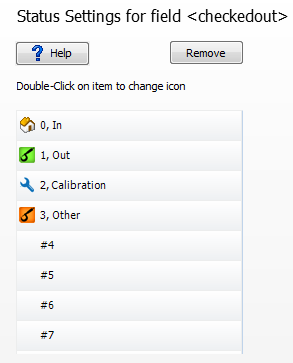
Double-clicking on an item on the list will bring up a list of image files.
•Select an image file from the list. You will see a picture of it next to the Description box.
•Enter a description. This description will show in the dropdown boxes next to the icon in the grids.
•Press OK
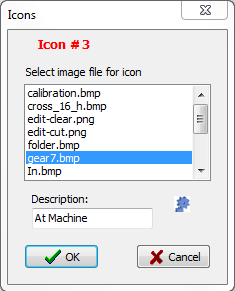
•Image files -Where to put the image files: Image files must be put in user data path \icons to show up in the list.
•Must be type .png, .jpg, .bmp, .gif
•Must be 16 X 16 pixel size. If they are different bigger size they may get shrunk to 16x16 but will work better if original is correct.
•Will also add the icons to any field that has "_ICON" in the field name. Field type must be integer.
Press "Save and Close" to save changes.