Language Settings
The default language built-in to Gage Control is English. Gage Control has full Unicode support for user interface and editor. Gage Control has the ability to load a user configurable language file that changes all the text in the user interface.
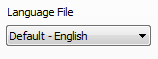
On the Settings - Other page, there is a dropdown box that lists all the language files in the user data folder.
Example of using a different language from a Gage Control Language File: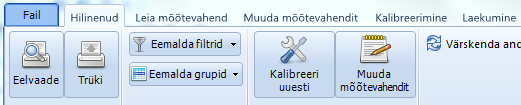
A language file consists of a text file with an identifier that represents an item on the interface and the translated string to change it to.
You can see from the included language files how they are arranged and how you can change the text you want displayed.
You can edit these files in a text editor that supports Unicode characters, like the Windows Notepad.
On the left of the equal sign is the item identifier. These show the English text that is used in the program. After the equal sign is the text that should be substituted instead. Just change the string after the equal sign to your translation. You cannot add any new item identifiers - these are the only ones used.
You can make your own language file of any language you want. The file must have a ".lang" extension. The text in the file must begin with the line: [Language]. You can just copy one of the existing language files to a new filename and edit it. You must put the file in the User Data Folder(shown in Settings - Calibration) directory for it to show up on the language list in Settings (on the Files page ).
The Estonian.lang file starts out like this:
[Language]
T_FILE = Fail
T_OVERDUE = Hilinenud
T_FIND_GAGE = Leia mõõtevahend
T_EDIT_GAGE = Muuda mõõtevahendit
T_CALIBRATION = Kalibreerimine
T_CHECK_IN = Laekumine
T_SETTINGS_DATABASE = Määrangud - Andmebaas
Windows Language Support
If all the text in in the buttons and labels are blanks, then it means your computer does not have support for that language installed.

If you have an English language Windows operating system, you may not have Eastern language support installed. In Windows XP you can install eastern language support by going to Control Panel - "Regional and Language Options".
Go to the Languages tab:
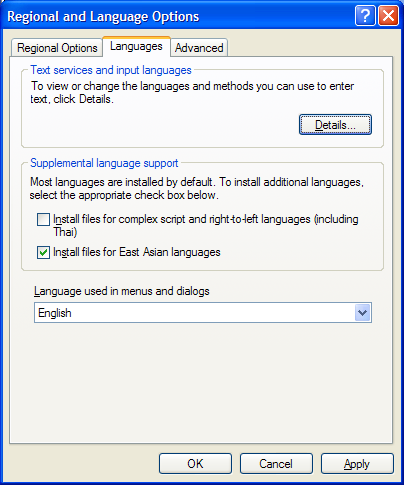
Check the "Install files for East Asian languages" checkbox and click Apply. It will go through an installation routine. After it is done, restart computer.