.png)
Barcode Scan-in
The Scan Barcode window will allow you to input from a barcode reader and automatically perform operations.
This window can be opened with either the scan button at the top of Gage Control:
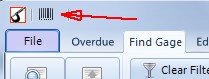
or by pressing Ctrl-F on keyboard.
When the edit box has focus, you can scan in a barcode with a barcode reader. The barcode reader will automatically cause the Enter button to be pressed, so you don't have to.
The edit box can also be used for typing in by hand. Type in and press enter on the keyboard.
Default Actions - The default actions are performed when the Gage Serial Number is scanned or typed in. The four radio buttons on the side select which of the possible actions are performed when you press Enter.
•Find: finds serial number on current tab.
•Check-In: goes to Check-in tab, checks in gage.
•Check-Out: goes to Find Gage tab, checks out gage.
•Edit: brings up that gage in the Edit Gage tab.
•Calibrate: Brings up that gage in Calibration tab.
Custom Script Actions - For other actions it is possible to substitute a script for the default actions. These scripts must be in the User Data Path. For the four buttons are four script files with these names:
Find = scanfind.bas
Check-In = scancheckin.bas
Check-Out = scancheckout.bas
Edit = scanedit.bas
Calibration = scancalibration.bas
When a script file by that name exists in the user data folder it will be used instead of the default action.
Example script:
REM go to the Find Gage tab
setpage(1)
REM get the scanned serial number
a$=scan$()
REM highlight that row in grid
if locaterow("gagesn",a$,0)=true() then
beep()
REM run a report
previewreport("onegagetest.fr3")
endif
See Script.