Settings
On the Settings tab is shown information about the font that is being used. It will show where the font file is. It will show the version of the font and will show whether this font is able to be embedded into Adobe PDF documents.
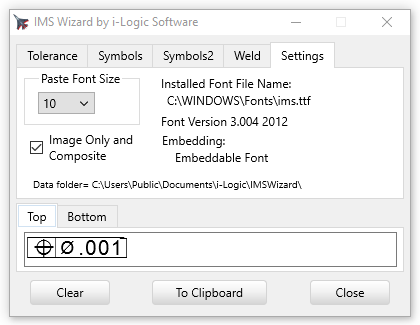
Font File Name: The name of the PDF Embeddable font is "IMS.TTF". The name of the non-embeddable font is "IMSN.TTF"
Embedding: This controls how you can create pdf documents in Adobe Acrobat. If you use the non-embeddable font when creating a PDF document with the Geometric symbols in it and send the document to someone else, they will not be able to see the symbols unless they have the IMS font installed on their computer.
If you use the Embedable IMS font when you create the PDF document, then the symbols are permanently in the document so when you send the PDF document to someone else they will always see the symbols even if they don't have any font installed. See PDF Embedding.
Paste Font Size: In some applications like Microsoft Word, the application will be able to receive font and size information from the clipboard and then can set the pasted symbols automatically to the IMS font and the size you choose. This is useful for applications that can paste in RTF (Rich Text Format) text.
If this is left blank then what you paste in to another document will take on whatever the font and size settings are set for in the document. When you paste it into a document the text must be set to IMS font in the document.
Image Only: If this is checked, pasting into a document will paste a bitmap image of the tolerance block into the document. You will only be able to paste it in documents that allow the pasting of images.
If you can't use the IMS TrueType font in your document and it will accept images, you can use this to put the special characters into the document.
The size of the created bitmap is controlled by the Paste Font Size.
Checking this box also turns on the Composite tolerance feature. The bottom edit box shows tabs to go to the top and bottom rows of a two line tolerance. If you want to output an image from just one line of tolerance text, put it in the top tab edit box.
Only the image will be put in the clipboard, not any text.
Posible to put in the clipboard:
•For plain text only in the clipboard set Paste Font Size to blank and uncheck Image Only.
•For RTF and plain text in the clipboard set Paste font size to some number. Leave Image Only unchecked.
•For image only or Composite check the Image Only checkbox. The size of the image is controlled by the value in the Paste Font Size box. If size is blank then the default 11 point size is used. Only the image is put into the clipboard.
Copyright © 2026 i-Logic Software